Booting from a bootable storage media
You can start your computer and perform data backup, recovery, erasure, and other operations by booting from a bootable storage media.
To start your computer with Active@ LiveCD, you must first prepare a bootable medium by burning an ISO image file to a disc or writing it to a USB drive using Active@ Boot Disk Creator.
For instructions on setting boot sequence priority in the system BIOS, see the chapter About Boot Priority.
To boot from the configured device:
-
cancel the Active@ LiveCD boot process
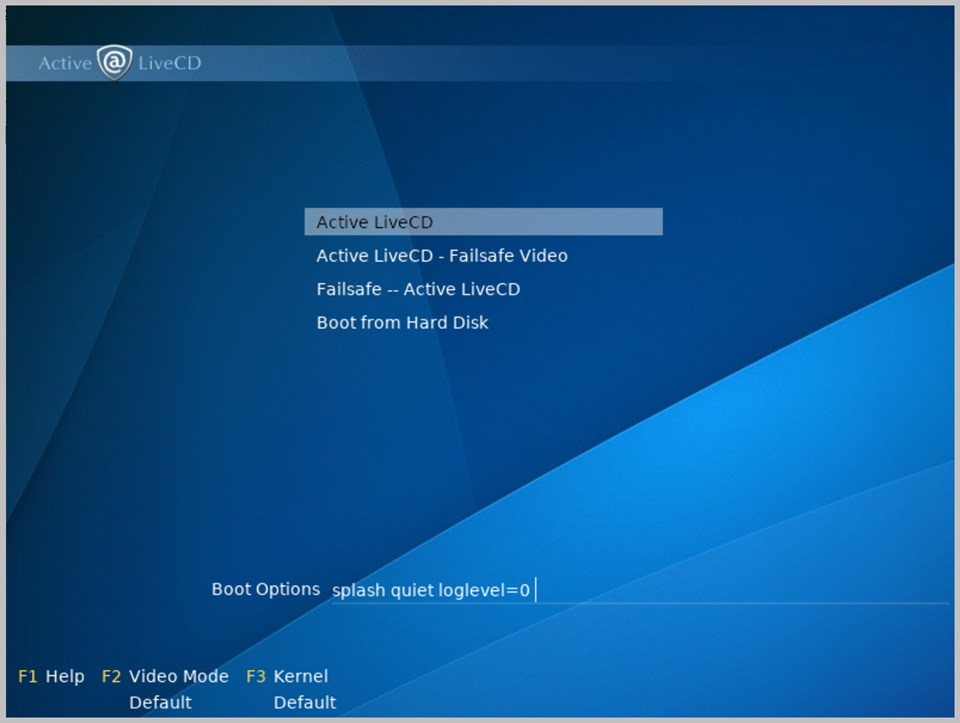
If you want to cancel the Active@ LiveCD boot process and load the operating system from the hard drive instead, move the cursor to Boot from Hard Disk and press Enter. Otherwise, the screen will change to display the Linux kernel loading process.
The Active@ LiveCD desktop will appear, ready for use.
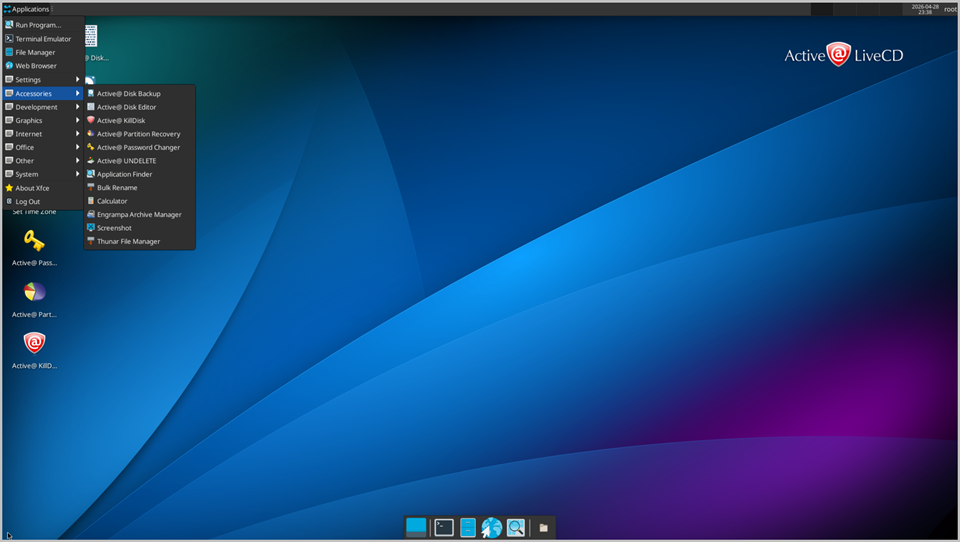
After starting the computer this way, you will have full exclusive access to the system drive. This level of access allows you to perform tasks and operations that are either less effective or not possible when the operating system has been started from the same hard drive you are attempting to work on.