Local Devices
Local Devices view shows all disks recognized by the Operating System as a flat list. All attached HDD/SSD/USB disks are visualized here and can be selected for different actions. Majority of commands can be initiated from here as well as progress displayed for actions performed with disks.
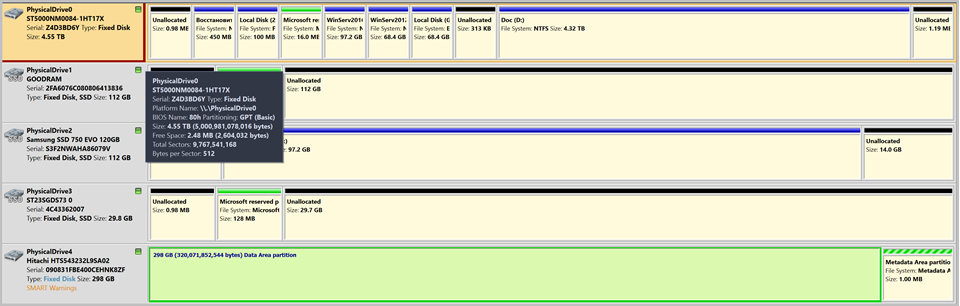
Select disk partition volume or other object in Disk Explorer and use available command from views toolbar or Actionmain menu to perform an action.
Multiple objects can be selected simultaneously by holding the Ctrl key and left-clicking each desired object.
Use the bottom edge of the sidebar to resize the layout vertically for optimal display on screen. Use the right edge of the sidebar to adjust its width. Alternatively, drag the bottom-right corner of the sidebar to simultaneously resize both the layout vertically and adjust the sidebar width.
- Show System Devices
- Displays the disk where Operating System is installed. This is off by default to prevent accidental erasure of the system
- Show Not Ready Devices
- Displays devices not yet initialized and used by Operating System
- Show Removable Devices
- Displays all removable and externally connected disks (such as USB Flash Drives and External USB Disks)
- Show Virtual Devices
- Displays virtual disks
- Show Partitions
- Enables the display of partitions in the layout of the Disk View.
- Compact View
- Changes the layout of the Disk View from display block to inline block orientation